

Section: Module 4: Lesson 1: Relative and Absolute Cell Referencing | Let's Learn Excel | NextGenU.org
-
Student Learning Outcomes:
Upon completion of this lesson, you will be able to:
- Use relative and absolute referencing in calculations and formulas.
-
Students mustView
Read the entire article. (10 minutes)
1.7 MB -
-
Students mustViewMake a submission
Activity 1, Module 4: Relative and Absolute Referencing (30 minutes)
1. Open Excel.
2. Enter the data into your spreadsheet, as shown in the figure below.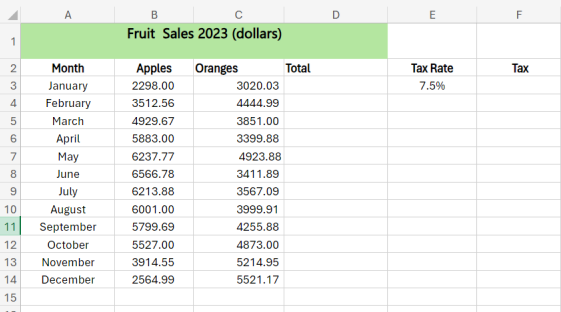
3. In cell D3, enter the formula that calculates the total sales for the month of January.
4. Copy the formula down to column D for all other months of the year by dragging the fill handle or double-clicking.
5. Click on cell E3. Click on the down arrow in the “Number” section of the “Home” tab. Proceed to the panel on the right, and make sure you have 1 decimal place.
6. In cell F3, enter the formula that calculates the tax on the total sales for the month. The tax rate is 7.5%. This is where you use absolute referencing. 7. By dragging the fill handle or double-clicking, copy the formula down to column F for all other months of the year.
8. Type “TOTAL” in cell C15.
9. Using the SUM function, find the total sales for the year and the total tax paid. Total sales will go into cell D15, and the total tax will go into cell F15.